Posts

▶ Insert a Copyright From the Keyboard | PCWorld

Answer Line forum  - How to enter the copyright symbol (©) without going through menus and the character map. I know two ways to do this. One is easier, but the other will work in just about any Windows program. The easiest way is to simply type  (c) . If you're using Microsoft Word or another Office program, or OpenOffice, the program will convert it to © as soon as you type the second parentheses. There may be other programs that do this, but those are the ones I know. If you're typing in a program that displays (c) as (c), hold down the  ALT  key while you type 0169  on your keyboard's number pad. As soon as you let go of  ALT , © will appear. This won't work with the typewriter number keys--the ones above the QWERTY letter keys. You have to use the numpad--the number keys at the far right end of the keyboard. Depending on what program you're using, NumLock may have to be on. If you're using a laptop's built-in keyboard, check the documentation...
▶ How to dummy-proof the PCs of friends and family | PCWorld

BRR-RING! The phone rings at midnight, interrupting your sleep—or worse, your late night Steam session with your gaming clan. Is someone sick? Did a car hit your dog? Is it your pal, calling to tell you he got the munchies and discovered that, joy of joys, the McRib is back? Perplexed (and maybe a bit hungry), you pick up your handset, and hear the ominous words. Doubling as unofficial tech support for your family and friends comes as part of the territory when you're a PC geek—and those cries for help frequently come all too often or at inopportune times. Weekends! Holidays! Nights! All gone, consumed by the fight against malware and missing Internet Explorer icons. It doesn't have to be like this. Rather than running around and slapping Band-Aids on all the problems, get proactive! An ounce of prevention is worth a pound of cure, as they say, and taking the time to set your friends' and loved ones' computers up the right way can dramatically cut back on help-seekin...

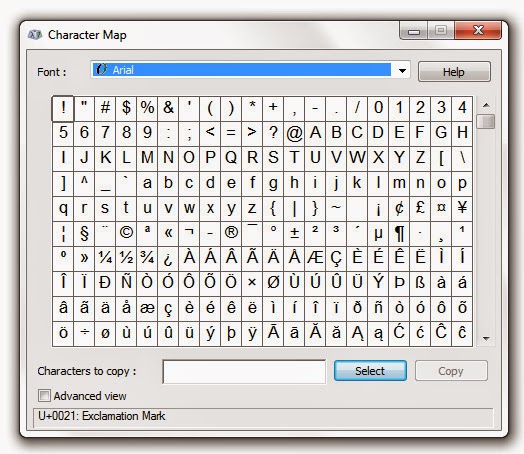
Using Special Characters (Character Map) - Windows

Image
A special character is a character that can't be found on your keyboard. You can insert special characters by using Character Map or by pressing a combination of keys on your keyboard. The Character Map How to Open the  Character Map Open Character Map by clicking the Windows  Start  button . . .  In the search box, type  Character Map , and then, in the list of results, click  Character Map . The Character Map enables you to view the characters that are available in a selected font. Using Character Map, you can copy individual characters or a group of characters to the Clipboard and paste them into any program that can display them. More at:  Windows Help Tweet

28 pieces of computing advice that stand the test of time

Image
Technology never stops moving foward. Hardware gets faster, and operating systems gain new features and (we hope) finesse. This is natural computing law. But just because computers are one big exercise in evolutionary progress, that doesn't mean certain computing maxims ever go out of style. Take, for example, the nuggets of wisdom in the following list. All of these things are as true today as they were 2, 5, and in some cases even 10 or 20 years ago. Below, we give you the best pieces of computing advice we've ever heard. Have we left anything out? Share your suggestions in the comments section of this article. More at:    PCWorld :

10 critical security habits you should be doing (but aren't).

Image
Batten down the hatches It's a tough, insecure world out there, fellow PC faithful. Times have never been scarier, with website data breaches turning into regular affairs, programming flaws like Heartbleed popping up left and right, and botnets like Gameover Zeus infecting a legion of PCs, only to gobble the up personal information and financial data stored within. Good news: There's a lot that regular PC users can do to protect themselves against the worst of the worst. But bad news: Most of us don’t bother. More at:   PCWorld :

Move from a hard drive to an SSD

Image
I've discussed the advantages of installing an SSD while also keeping your large hard drive in   The Best of Both Worlds: An SSD and a HDD . I've also explained how to   Move your libraries to an external drive without messing things up --important with most laptops when you switch to an SSD.  But I confess: I never covered the basic job of moving your Windows installation from a large-capacity hard drive to a faster but more limited SSD. I'll fix that right now. More at: PC  World

How to quickly recover lost form data in your browser

This is an update of a browser extension I last wrote about a couple years back. It's too good not to revisit every so often. Just the other day, this happened: After writing a fairly lengthy post in a browser-based blog tool, I hit the Backspace key to delete something--but because my cursor wasn't inside the text field at the time, Chrome interpreted that as the keyboard shortcut for "back." In other words, back to the previous page. A big chunk of my unsaved work: gone. Crud. Read the solution at:  PCWorld :