Posts

The last free Windows 10 upgrade path for consumers will shut down by December 31 | PCWorld

The last free Windows 10 upgrade path for consumers will shut down by December 31 | PCWorld : "There's still one way consumers can upgrade to Windows 10 for free—and Microsoft will shut it down on December 31, even though a majority of the world's PC users still use older versions of Windows." 'via Blog this'

Final AskWoody format is shaking out @ AskWoody

Final AskWoody format is shaking out @ AskWoody : You may have noticed the re-emergence of two long-missed “widgets” on the right side of this page. Several of you have written. Yes, this means the site is getting well again. (We haven’t seen any DoS style bombardments recently.) No, it’s not the final arrangement. As @PKCano noted to me privately, we’re really looking for something like this: Login box Welcome, shortcut to most-used links Support AskWoody Lounge list and links Highly Recommended (I hand-pick Amazon ads) Search etc., etc. 'via Blog this'

▶ Insert a Copyright From the Keyboard | PCWorld

Answer Line forum  - How to enter the copyright symbol (©) without going through menus and the character map. I know two ways to do this. One is easier, but the other will work in just about any Windows program. The easiest way is to simply type  (c) . If you're using Microsoft Word or another Office program, or OpenOffice, the program will convert it to © as soon as you type the second parentheses. There may be other programs that do this, but those are the ones I know. If you're typing in a program that displays (c) as (c), hold down the  ALT  key while you type 0169  on your keyboard's number pad. As soon as you let go of  ALT , © will appear. This won't work with the typewriter number keys--the ones above the QWERTY letter keys. You have to use the numpad--the number keys at the far right end of the keyboard. Depending on what program you're using, NumLock may have to be on. If you're using a laptop's built-in keyboard, check the documentation...

▶ How to dummy-proof the PCs of friends and family | PCWorld

BRR-RING! The phone rings at midnight, interrupting your sleep—or worse, your late night Steam session with your gaming clan. Is someone sick? Did a car hit your dog? Is it your pal, calling to tell you he got the munchies and discovered that, joy of joys, the McRib is back? Perplexed (and maybe a bit hungry), you pick up your handset, and hear the ominous words. Doubling as unofficial tech support for your family and friends comes as part of the territory when you're a PC geek—and those cries for help frequently come all too often or at inopportune times. Weekends! Holidays! Nights! All gone, consumed by the fight against malware and missing Internet Explorer icons. It doesn't have to be like this. Rather than running around and slapping Band-Aids on all the problems, get proactive! An ounce of prevention is worth a pound of cure, as they say, and taking the time to set your friends' and loved ones' computers up the right way can dramatically cut back on help-seekin...

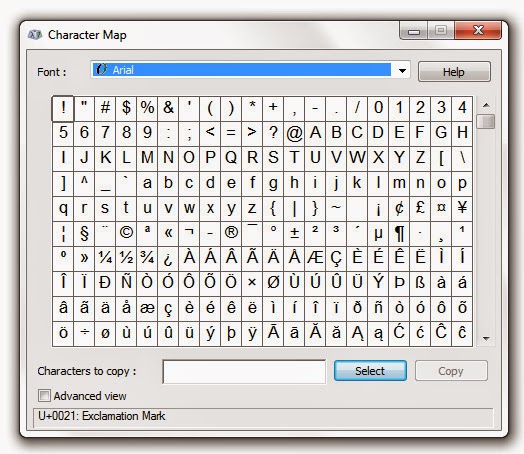
Using Special Characters (Character Map) - Windows

Image
A special character is a character that can't be found on your keyboard. You can insert special characters by using Character Map or by pressing a combination of keys on your keyboard. The Character Map How to Open the  Character Map Open Character Map by clicking the Windows  Start  button . . .  In the search box, type  Character Map , and then, in the list of results, click  Character Map . The Character Map enables you to view the characters that are available in a selected font. Using Character Map, you can copy individual characters or a group of characters to the Clipboard and paste them into any program that can display them. More at:  Windows Help Tweet

28 pieces of computing advice that stand the test of time

Image
Technology never stops moving foward. Hardware gets faster, and operating systems gain new features and (we hope) finesse. This is natural computing law. But just because computers are one big exercise in evolutionary progress, that doesn't mean certain computing maxims ever go out of style. Take, for example, the nuggets of wisdom in the following list. All of these things are as true today as they were 2, 5, and in some cases even 10 or 20 years ago. Below, we give you the best pieces of computing advice we've ever heard. Have we left anything out? Share your suggestions in the comments section of this article. More at:    PCWorld :

10 critical security habits you should be doing (but aren't).

Image
Batten down the hatches It's a tough, insecure world out there, fellow PC faithful. Times have never been scarier, with website data breaches turning into regular affairs, programming flaws like Heartbleed popping up left and right, and botnets like Gameover Zeus infecting a legion of PCs, only to gobble the up personal information and financial data stored within. Good news: There's a lot that regular PC users can do to protect themselves against the worst of the worst. But bad news: Most of us don’t bother. More at:   PCWorld :

Move from a hard drive to an SSD

Image
I've discussed the advantages of installing an SSD while also keeping your large hard drive in   The Best of Both Worlds: An SSD and a HDD . I've also explained how to   Move your libraries to an external drive without messing things up --important with most laptops when you switch to an SSD.  But I confess: I never covered the basic job of moving your Windows installation from a large-capacity hard drive to a faster but more limited SSD. I'll fix that right now. More at: PC  World

How to quickly recover lost form data in your browser

This is an update of a browser extension I last wrote about a couple years back. It's too good not to revisit every so often. Just the other day, this happened: After writing a fairly lengthy post in a browser-based blog tool, I hit the Backspace key to delete something--but because my cursor wasn't inside the text field at the time, Chrome interpreted that as the keyboard shortcut for "back." In other words, back to the previous page. A big chunk of my unsaved work: gone. Crud. Read the solution at:  PCWorld :

Essential networking tips for small business

Image
So you’ve seen the light and turned your sluggish PC into a productivity powerhouse with better, fastergear. That’s a great first step. But putting together a state-of-the-art PC workstation without having a fast, reliable network to help it run at its best is like leaving your souped-up new ride on blocks in your garage. Check out the tips below for ways to upgrade your network and storage, and take your productivity to the next level. Embrace the flexibility of wireless . . . More at:   PCWorld

How to dummy-proof the PCs of friends and family!

 "BRR-RING! The phone rings at midnight, interrupting your sleep—or worse, your late night Steam session with your gaming clan. Is someone sick? Did a car hit your dog? Is it your pal, calling to tell you he got the munchies and discovered that, joy of joys, the McRib is back? Perplexed (and maybe a bit hungry), you pick up your handset, and hear the ominous words: "Hi, sorry to call you, but I'm having this problem with my computer…"" More at:  PCWorld :

How to add Windows 8's best desktop features to Windows 7

It's too bad that the modern UI has proven so contentious, because aside from the eye candy—or eye cancer, depending on your perspective—an abundance of welcome nuts-and-bolts changes makes Windows 8 the hands-down best version of Windows that Microsoft has ever released. But don't despair. Although you can tweak and tuck a few things to almost completely banish the interface formerly known as Metro from your Windows 8 life, you can also try another tactic: not upgrading at all. Many of Windows 8's best under-the-hood improvements can be yours in Windows 7 with the help of a few handy-dandy applications. Having your cake and eating it too has never tasted so sweet. More at: PC World

How I ditched the security risks and lived without Java, Reader, and Flash | PCWorld

Adobe Flash, Adobe Reader, and Oracle's Java. All three are virtually ubiquitous on modern-day PCs, and all three provide handy-dandy functionality—functionality that, in the case of Flash and Java, can't be directly reproduced by a third-party solution. If we lived in a vacuum, it would be hard to argue that the trio doesn't deserve its spot on computers around the globe." We don't live in a vacuum, though. Here in the real world, widespread adoption of the software makes all three irresistible targets for hackers and malware peddlers. The attacks reached a fever pitch in the early months of 2013, with a flood of reports about Flash, Reader, and Java exploits. Three different articles about Java exploits hit PCWorld's homepage this past Monday and Tuesday alone, and Adobe issued three critical Flash updates in February. More at: PCWorld :

Prepare an old PC for a new owner

Image
Before you give away a computer, you should make sure that your most private, sensitive files are irretrievable. You don't want them to fall into the wrong hands. But that's not all. You should also return the hard drive to its factory condition, so that the new owner can set it up as they choose. Let's discuss both topics. Securely wipe sensitive files If a file contains information that you'd rather not fall into criminal hands (or government hands), merely deleting that file isn't sufficient--even if you empty the recycle bin. Deleted files can be restored with simple, free software. Instead, you should  wipe  those files--overwriting them with new, meaningless data. As a general rule, the more times the file's former location on the drive surface is overwritten, the more secure the wipe . . .  More at:  PCWorld : Also:   Remove Sensitive Data Before You Sell an Old PC - go here .

Maximize your first 30 minutes with Windows 8

Image
You've successfully  installed Windows 8 . You're staring at the Start screen, in all its flat-tiled glory, and it all seems completely alien based on your previous experience with Windows. As with any new version of an operating system, your first half-hour is critical. You'll want to learn the basics of navigation, how some important built-in applications work, and how to set up basic functions, including networking, backup, and user accounts. For this article, I'm going to assume that you now have Windows 8 running, and that you can see the Start screen and associated tiles. I'll also assume that all the current drivers, including networking drivers, are properly installed. First, let's go over some basic navigation tips.  It's likely most early Windows 8 adopters will be using displays that lack Windows 8's ten-point multi-touch capability, though a few may spring for some of the  shiny new systems   that bring the touch interface to mainstream ...
How to future-proof your hardware for Windows 8

"It's like a special consumer-tech corollary of Murphy's law: Your PC will inevitably die just before a new Windows OS is about to ship. You need a new laptop immediately, and you can't wait to buy one that comes with the new OS preinstalled. Or maybe you want to upgrade a component or two to ensure that your system will be compatible with the new operating system. In either case, if you're planning on adopting a new OS, you'll want to get the most out of any new hardware you buy, even if you buy that hardware prior to the operating system's release." M o re at:  PCWorld :

How to securely erase your hard drive

Ensure that the data on your old drives is safe from prying eyes with this simple guide to securely wiping your hard drives. The siren has sung and you've finally succumbed to her call: You're the proud owner of a shiny new PC; a faster, better SSD; or a bigger, better hard drive. It's time to toss your old equipment in the trash and start playing with your new toys, right? Not so fast. More at:  PCWorld :

Top 20 Windows 8 Features

"Top 20 Windows 8 Features From Metro Start to reduced hardware requirements, here is a look at the best new features Windows 8 users will love. As with any technological overhaul, Windows 8 has been met with passionate and mixed response among those who have had a chance to download and test run the Consumer Preview of Microsoft's flagship OS. The company's bold new direction for Windows, with its dual interface and emphasis on tablet functionality, certainly means changes ahead for IT departments when Windows officially ships. But for users there is a lot to like about the forthcoming OS. Here is a look at the 20 features that Windows 8 users will appreciate the most. See slideshow at:  PCWorld

16 PC Mysteries Solved!

Image
Our digital detectives uncover the truth behind some of tech’s most baffling questions. #3  Why can't I upgrade from 32-bit Windows to 64-bit Windows? Upgrading a copy of Windows 7 from 32-bit Home to 32-bit Professional is simple enough, but upgrading to a 64-bit version of the OS re­­quires you to do a fresh installation. Windows handles information differently depending on whether you use the 32-bit or 64-bit version. In extremely broad terms, a 64-bit operating system can process data in bigger chunks than a 32-bit system can. That's why you can't use the Windows Easy Transfer utility to move files and applications between 32-bit and 64-bit versions of Windows: The CPUs on the transferring and re­­ceiving machines use fundamentally different data architectures. More at:  PCWorld

Install Windows 8 Release Preview

Microsoft has made available for download Windows 8 Release Preview. This free operating system is the final, feature complete version of Windows 8, which is set to launch to consumers later this year. Here's how to install Windows 8 Release Preview.  Windows 8 is the biggest development in Microsoft's operating system for  PCs  and  laptops  since Windows 95 replaced Windows 3. The Metro interface alone is a radical overhaul of the way you are used to working with Windows, and Windows 8 is built from the ground up to work on touchscreen devices, as well as via keyboard and mouse. More at:  PC Advisor :